Every season is IEP season as a special educator! Today I’m going to share how I incorporate each of my student’s voices into his or her IEP. Using google forms for student input on IEP goals puts the power in the hands of the student.
I believe that all students should have input as to what goes in his or her IEP. Yes, that means elementary-aged kiddos, too! Whether you teach elementary, middle, or high school, educators should make an effort to incorporate a student’s voice into the IEP. If you’re short on time, you can get this information informally via conversation: What are your strengths? What do you need support with? What do you like about school? What do you want to learn this year? Putting power in the hands of the student in regards to IEP development helps build the skill of self-determination.
Of course, special educators can modify this into a visual-based system as needed. Check out this example:
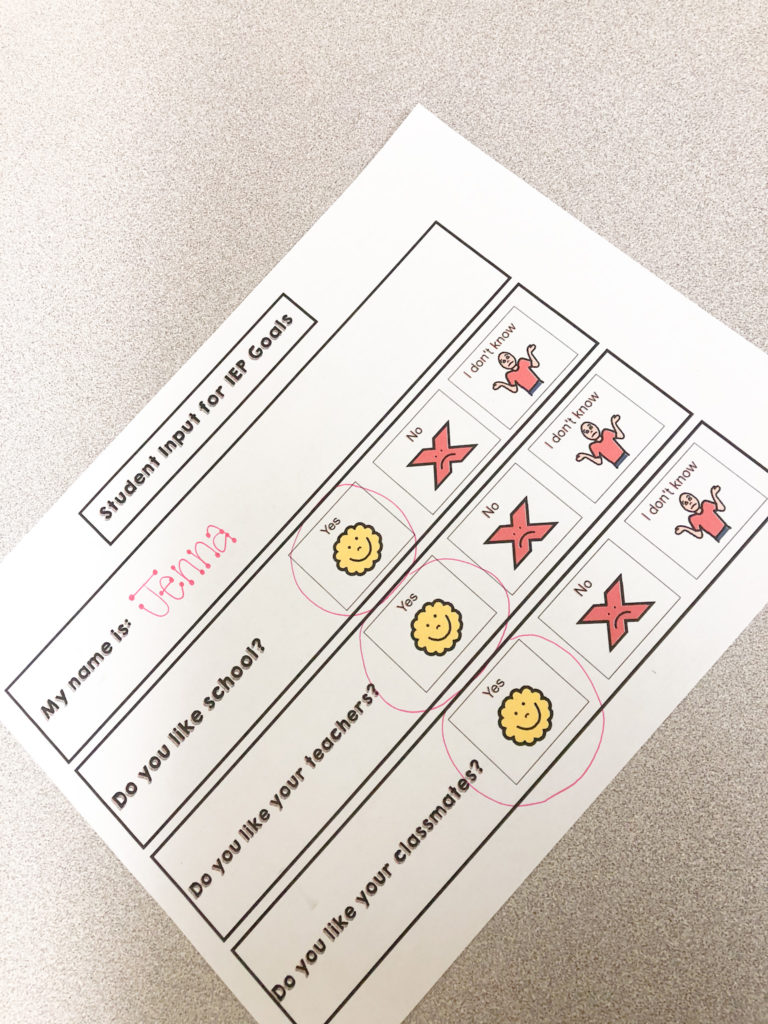

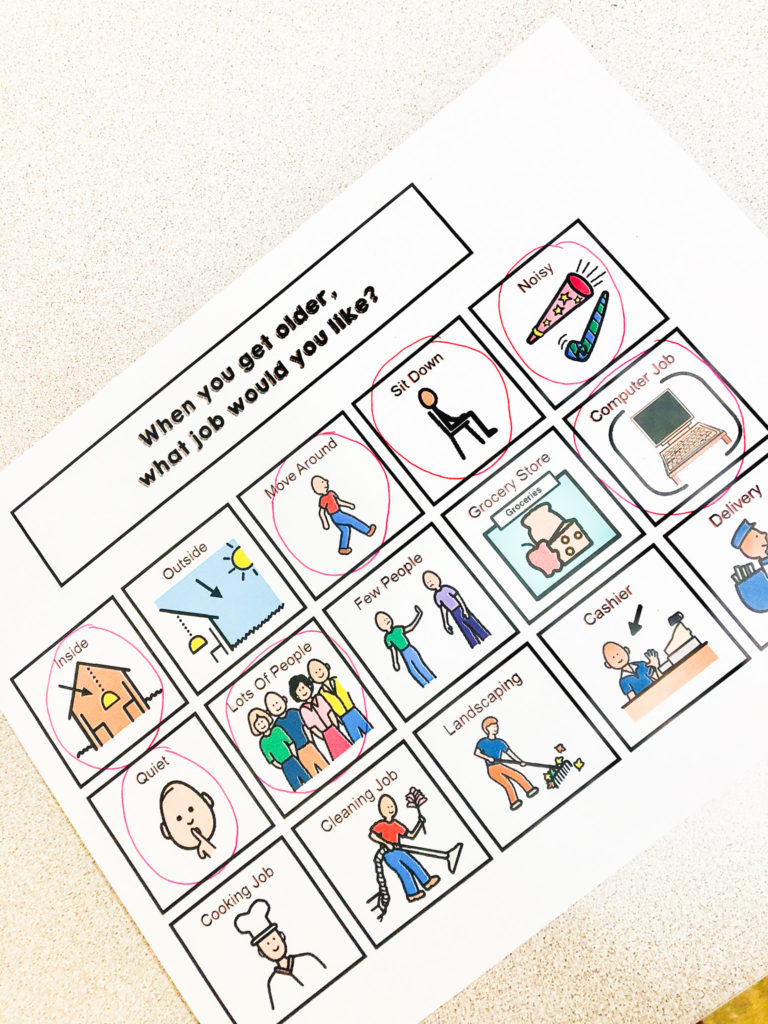
As we know, the Individuals with Disabilities Education Act (IDEA) requires that a student aged 14-years or older must be invited to attend his or her IEP meeting. When you’re sitting at the table talking about a student’s challenges in front of him or her, it can be tricky and often intimidating; that’s why it’s important to have the student’s voice in the document from the get-go! Before I verbally propose my goal in an IEP meeting, I’ll state: “Remember when you told me about your strengths and challenges? That helped me write this goal for you!” Don’t forget, a student can be younger than 14-years-old to have his or her voice incorporated in the IEP.
Google Forms™
In the era of technology, ChromeBooks, and virtual interactions, I have turned to Google Forms™ to help me gather student input for IEP goal development. Haven’t used Google Forms™ before? No problem! Google Forms™ are free virtual surveys connected to your Google email account.
You can access Google Forms™ one of two ways:
1.) Enter: forms.google.com. This will bring you to the “Forms” section of your Google account. From here, you can select: “Blank”.
2.) You can also access Google Forms™ directly from your Google mail account. At your home page, head to the top right corner. Click on the grid of 9 dots. This is your “Google Apps” home-base. Once there, scroll until you find “Forms”. It’s a purple icon that resembles a piece of notebook paper.
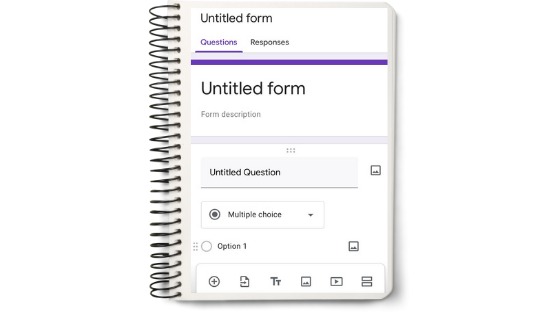
Once you have your blank form ready to go, enter a title. I titled mine Student IEP Input.
Now the fun begins! Google Forms™ allows a ton of varieties for question-types, including: short answer, paragraph, multiple choice, check boxes, drop down, linear scale, multiple choice grid, and check box grid.
I use the check box feature for my “Student IEP Input” form. This format alleviates the pressure for students to answer open-ended questions. Here’s what my survey looks like:


This is your form, so tailor it however you see fit! As an SLP, I ask these questions regarding social communication strengths and challenges:


Pro tip: For each question, select “Required”. This ensures all students answer the questions that you provide. You can see that my questions are required as designated by the asterisk (e.g., *).
If you’re still struggling, no worries! Here is a link from Google describing the steps in a bit more detail:
https://support.google.com/docs/answer/2839737
So, you’ve made your form. Congratulations! Now what?
Well, time to send it off! At the top right of your Google Form™, there is a purple button that says “Send”. From there, you will be able to add in your student’s email address. The Google Form™ will then be sent directly to your student’s inbox for completion.
Once a student completes the survey, the responses will come right back to you. Here’s what a response from a student looks like:

Here are some other ideas for using Google Forms™ as an educator outside of IEP development:
- Surveying students’ interests for academic content (e.g., Which planet do you want to learn about first?)
- Surveying students at the end of each week, month, and/or quarter to see what their favorite lessons were
- Surveying students to determine which learning modality they find the most effective (e.g., paper-pencil tasks, videos, teacher examples, hands-on activities/experiments, etc.)
- Collecting data
- Giving quizzes or tests
Alyssa also has some Google Forms™ available for teacher input on IEP goals in her IEP Binder.
Regardless of how you structure it, using this free feature connected to your Google account is incredibly beneficial AND easy!
Explore, enjoy, & empower!


