Are you using Google Classroom™ to organize your special education classroom? Are you wondering how you could optimize this platform for your students with special needs? If your answer is “yes” to either or both of the above questions, then this blog post is for you! Below I have included some tips and tricks on Google Classroom™ that I use for my Moderate/Severe Special Day Class.
One important skill that I focus on in my classroom is building independence in my students. Independence and inclusion of all ability levels are at the forefront of my mind as I design my Google Classroom™ for my class.
Creating Your Google Classroom™
Google Classroom™ is an online platform developed by Google™ for teachers to create online classrooms. In view of that, both you and your students will need to have a Google™ account to use this platform. You may want to check with your school district to see if they have purchased a license for all teachers and students. Once you have confirmed that everyone has a Google™ account, you are ready to rock and roll!
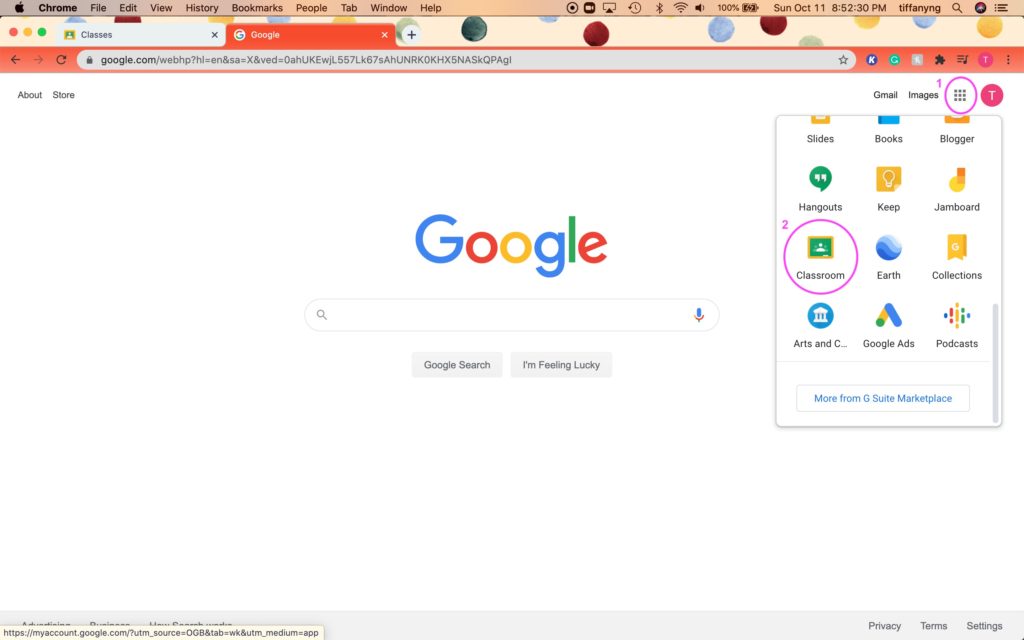
Access Google Classroom™ from your Google homepage.
After signing into Google™, open the Google Apps™ menu in the top right corner. Scroll down to find Google Classroom™.
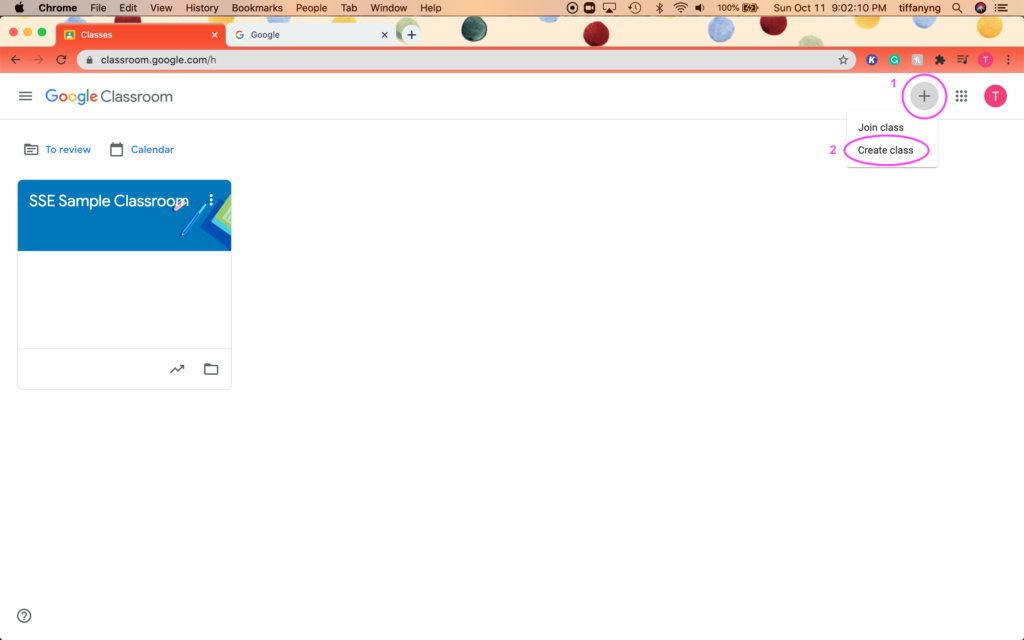
Create a new class.
Once you have Google Classroom™ opened, create a new class by clicking on the “+” symbol and then “create class” in the top right corner. Follow the directions to complete creating your class.
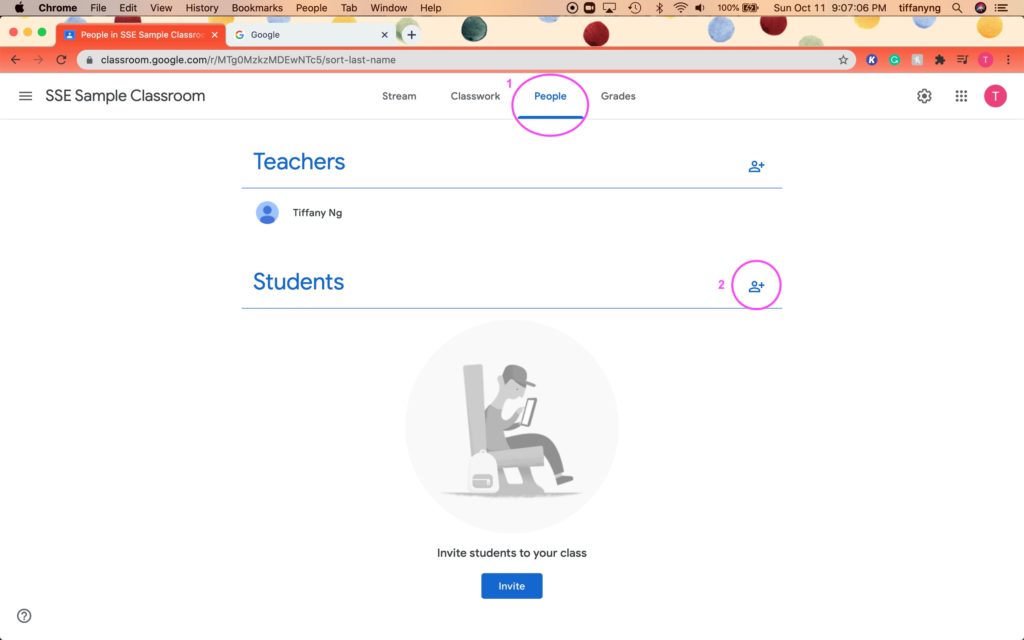
Add students to your Google Classroom™.
After creating your class, it is time to add students. From your classroom homepage, go to “People”, then click on the add students symbol.
There are 2 ways to add students:
- Inviting using an URL
- Inviting using their Google account™
Both methods are fairly self-explanatory once you get to that point. Personally, I invite my students with their Google™ accounts. It is simple for me as a teacher, and it also gives students additional practice of getting into their Google™ email.
Making Your Google Classroom™ Accessible for Special Education
It is important that your students are able to access your hard work on Google Classroom™. Below are some ways I help my students with special needs be successful in navigating my online platform.
- Keep more recent posts on top of the feed. Google™ makes this easy for us. It automatically adds newer posts to the top. Keeping new posts on top will eliminate scrolling and accidentally missing an important announcement/assignment.
- Less is more. Simplicity increases independence in our students with special needs. Rather than posting 5 updates in a day, consider consolidating those updates into one end-of-day communication.
- Keep it simple with Google Applications™. Be mindful of what types of technology your students have during this time – links to other websites such as Brainpop™ may not be as user friendly as an interactive Google Slides™.
- Always include hyperlinks. When using resources from an outside resource, always include a hyperlink.
- Add paraprofessionals and/or other service providers to your Google Classroom™. Michelle, a member of the SSE Blogger Team, just shared some amazing tips on utilizing paraprofessionals during virtual learning. Read her blog post here!
- Embed Google Meet™ link in Google Classroom™. If you are virtual or hybrid this year, you are probably using Google Meet™ or Zoom™ for your online teaching. Keeping your Google Meet™ link in your Google Classroom™ helps your students with special needs be more independently successful when navigating your online class. Below please see a video that I have made to show you how to embed the Google Meet ™ link in your Google Classroom™.
Uploading and Assigning Resources to Your Google Classroom™
Once you have set up the skeleton of your Google Classroom™, it is time to upload and assign resources to your students! With supporting students’ independence in mind, I have summed up a few actions I take when uploading and assigning resources to my students with special needs on Google Classroom™.
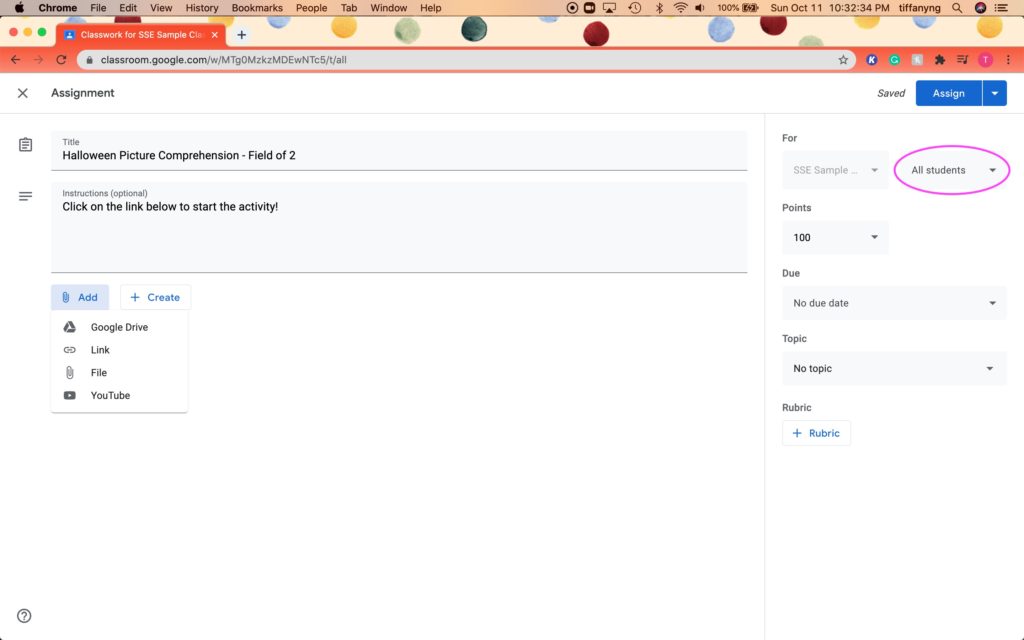
Differentiate by assigning leveled work for specific students.
Being special education teachers, we understand and appreciate the beauty of differentiation. You can assign differentiated work on Google Classroom™ by picking specific students (instead of the default “All students” option) to target assignments.
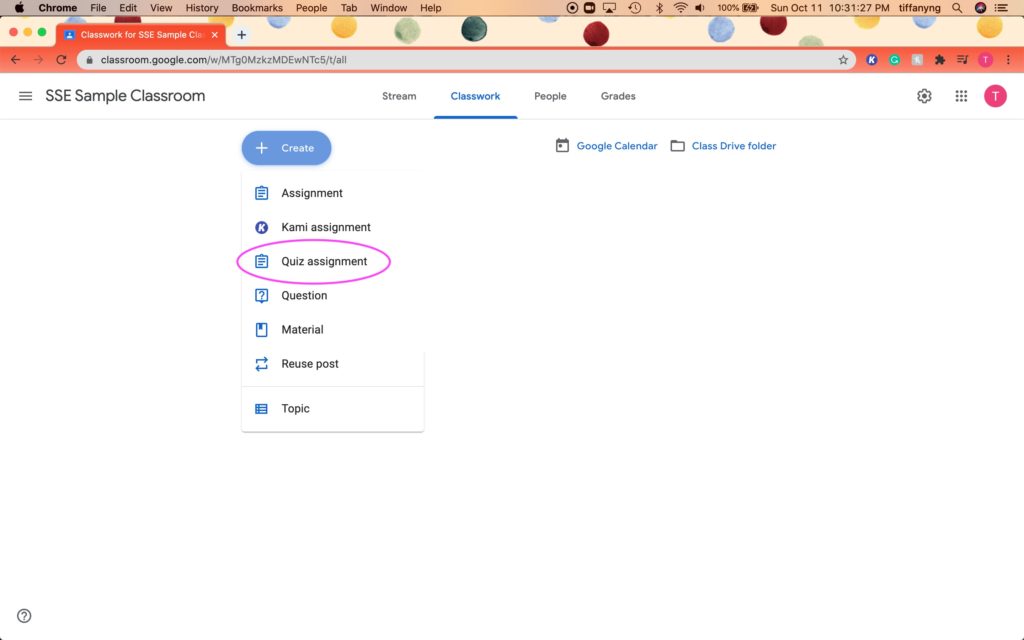
Assess using quiz function in Google Classroom™.
Assessments are a big part of special education. You can use the “Quiz Assignment” function to accomplish this!
Once you set up the quiz assignment, you can choose to add a pre-created document or create a Google Form™.
Make a copy for each student. When assigning assignments that require students to manipulate with the document (e.g. typing, drag and drop), it is important that every student has their own copy of the document, and their opportunity to show their knowledge. I have made a video to show you how to do so for your students – see below!
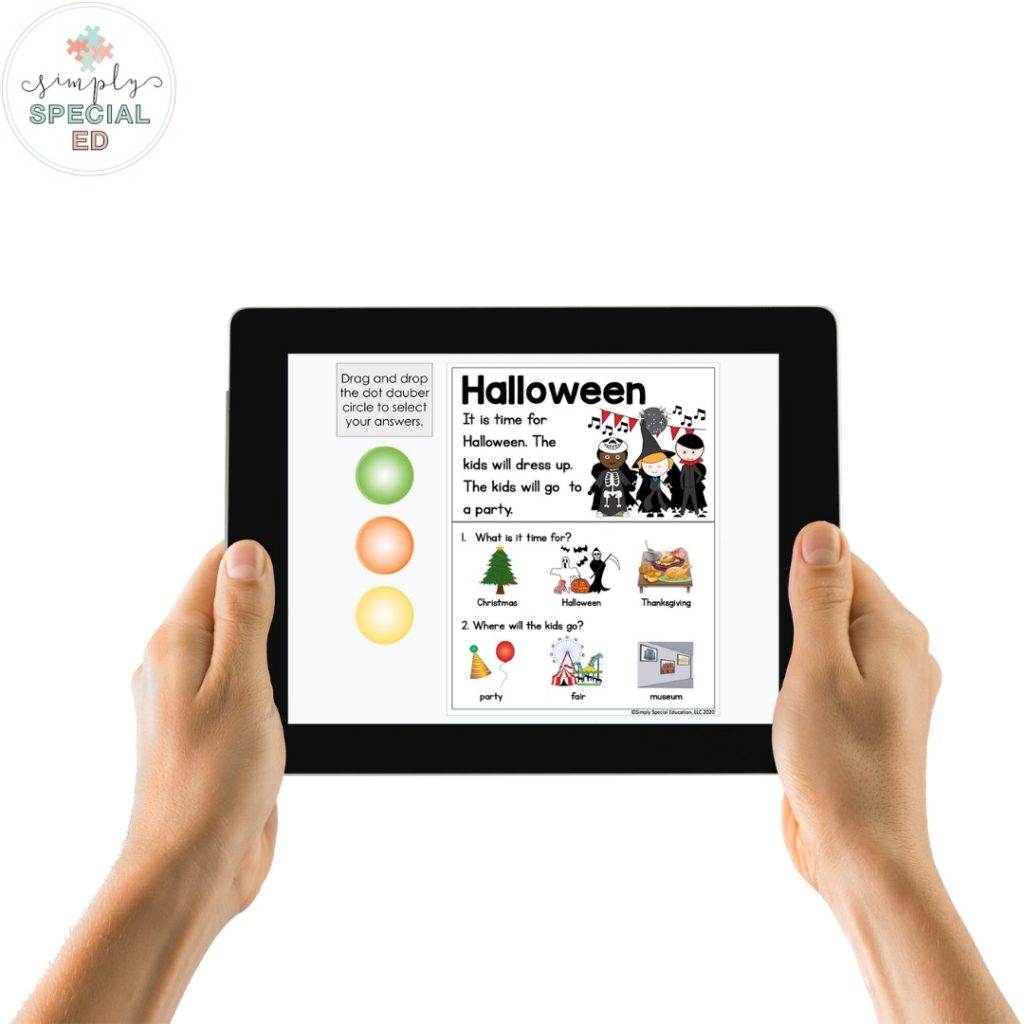
Using Google Classroom™ on a touch-screen device

While you are likely using Google Classroom™ on your laptop/desktop, our students with special needs may find using a touch-screen device (e.g. tablet) easier. Having said that, your students using a tablet may find their experience slightly different than their peers using a laptop. For one, tablet-users would download the Google Classroom™ app and access class that way. It is also important to remember that different types of technology give different experiences when accessing multi-media websites, such as FlipGrid™. Keeping your assignments simple will allow for more independent student participation.
I hope you find these tips and tricks on Google Classroom™ helpful as we navigate through this time of uncertainty – together!



Hello, my name is Eugenia Kilintari and I am a greek SEN teacher working in greek special elementary schools.
As we have founding problems to buy educational staff I tried to find alternative ways to create the educational staff. Especially, I am interested in how to create digital file folders. I found your staff on a site and I would like if it is possible for some instructions if you are available about how you created these wonderful digital file folders. Is there any specific app or site that you create this work?
Thanks a lot, your help would be a great relief
Sincerely,
Evgenia Kilintari
Hi! This is a lot of work to create these activities, there are many tutorials on youtube. I am self-taught. I use a combination of many different programs and have team members who are experts. Hope this helps!
Alyssa